Many teams are happy to record working hours but uncomfortable with a tool that photographs their screen every few minutes. Screenshots can capture personal messages, banking pages and confidential client data that have nothing to do with attendance. If you want accurate hours without that intrusion, here is what to look for in a time tracker and how to check the claims before you roll it out.
Ask what problem screenshots are solving
Screenshots are often enabled by default simply because the software offers them. Start by asking which question you need answered. If the question is how many hours people work and when, timer events and activity counts answer it. If you need a breakdown by client, a daily work log does that better than images.
There are narrow cases where screenshots help, such as verifying work for a client who requires evidence. In those cases, use a limited interval, exclude sensitive applications and tell employees exactly when capture is on.
What a privacy-first tracker should record
That is enough for attendance, workload and payroll inputs in most organisations.
- Timer events: start, pause, break, resume and stop.
- Sleep and wake of the computer while the timer runs.
- Whether there was keyboard or mouse input, as counts only.
- Totals for tracked, active, idle and break time.
What it should never record
Ask vendors to confirm each point in writing and in their privacy policy.
- Typed text, key sequences or passwords.
- Clipboard contents.
- URLs or browsing history.
- Camera, microphone or location.
- Anything while the timer is paused or stopped.
How to verify the claims yourself
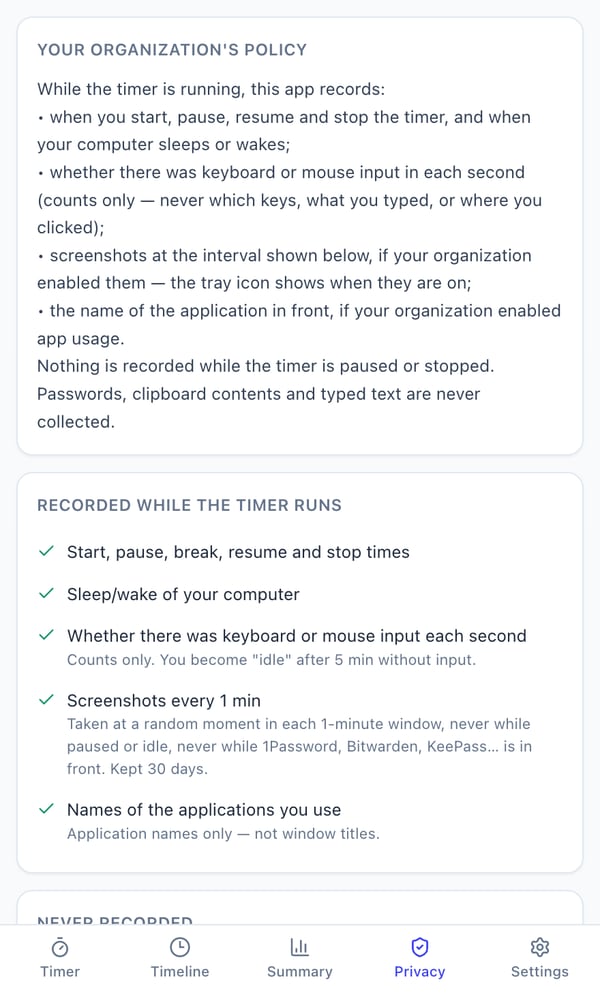
Install the app on a test machine and look for a screen inside the app that shows the employee what is recorded. Check whether optional features are visibly indicated when they are switched on. Read the vendor's privacy policy for a specific list of collected and never-collected data. If the vendor cannot give a clear list, treat that as an answer.
How Pedinno Time Tracker handles screenshots
In Pedinno Time Tracker, screenshots and application names are off by default and controlled by organisation policy. Without them, the tracker still gives managers live status, minute-by-minute timelines and daily, weekly and monthly reports. If an organisation does enable screenshots, the employee's Privacy tab shows the interval and the tray icon indicates when they are on; captures are not taken while the timer is paused or idle, or while password managers such as 1Password, Bitwarden or KeePass are in front. Deleting screenshots is restricted to authorised admins and audited.
Make the choice part of your written policy
Record in your tracking policy that screenshots are off, or the specific reason, interval and retention if they are on. Revisit the decision only with notice to employees. Teams that know screenshots are not running tend to accept time tracking far more readily.
Frequently asked questions
Can I use Pedinno Time Tracker with screenshots turned off?
Yes. Screenshots are off by default. Timelines, activity levels and reports work without them.
Will employees know if screenshots are switched on?
Yes. The Privacy tab shows the policy and interval, and the tray icon shows when screenshots are on.
Does the tracker record which websites employees visit?
No. URLs and browsing history are never collected. Application names are optional and off by default.
See Time Tracker in action
Transparent time tracking for Windows, macOS and Android — timers, activity levels, timelines, optional screenshots and daily, weekly and monthly reports.
Ask to see the employee Privacy tab with screenshots off and on, so your team sees exactly what changes.
Explore Employee Time Tracker