Sometimes you need to know when a computer was actually in use: to settle a question about a late start, to troubleshoot a laptop that will not sleep, or to check your own hours. Both Windows and macOS keep logs of startup, shutdown, sleep and wake. Here is how to read them, along with an important caveat about what those logs can and cannot tell you.
Windows: use Event Viewer
Press Windows + R, type eventvwr.msc and press Enter. Open Windows Logs and then System. Choose Filter Current Log on the right and enter the event IDs you want, separated by commas. The result lists each event with its date and time.
- 6005: the event log service started, which happens at startup.
- 6006: the event log service stopped, which happens at a clean shutdown.
- 6008: the previous shutdown was unexpected.
- 1074: a user or process started a shutdown or restart.
- 42 (Kernel-Power): the system is entering sleep.
- 1 (Power-Troubleshooter): the system woke from sleep.
Windows: quick commands
For the last boot time, open Command Prompt and run systeminfo | find "System Boot Time" on an English-language installation, or in PowerShell run (Get-CimInstance Win32_OperatingSystem).LastBootUpTime. Note that with Fast Startup switched on, choosing Shut down does not fully restart Windows, so the last boot time may be days old even though the computer was switched off every evening. Use the sleep, wake and shutdown events for a fuller picture.
Mac: use Terminal
Open Terminal from Applications > Utilities. Run last reboot to list recent restarts and last shutdown to list shutdowns. For sleep and wake, which matter most on laptops, run pmset -g log | grep -E "Entering Sleep|Wake from". Each line shows a date, time and the reason for the change. The log can be long, so add | tail -50 to see the most recent entries.
Why computer-on time is not working time
A computer can be switched on for hours while nobody is using it, and much real work happens away from the keyboard: calls, meetings, reading printouts. Equally, someone can work for an hour on a computer that was switched on the day before. System logs answer the question "was this computer on?", not "was this person working?" Use them for troubleshooting and occasional checks, not as a timesheet.
Respect privacy when checking someone else's computer
Checking logs on a company device as part of a documented IT or attendance process is different from secretly investigating an employee. If you plan to use device logs in any attendance decision, include that in your written policy and tell employees in advance.
A better record of working time
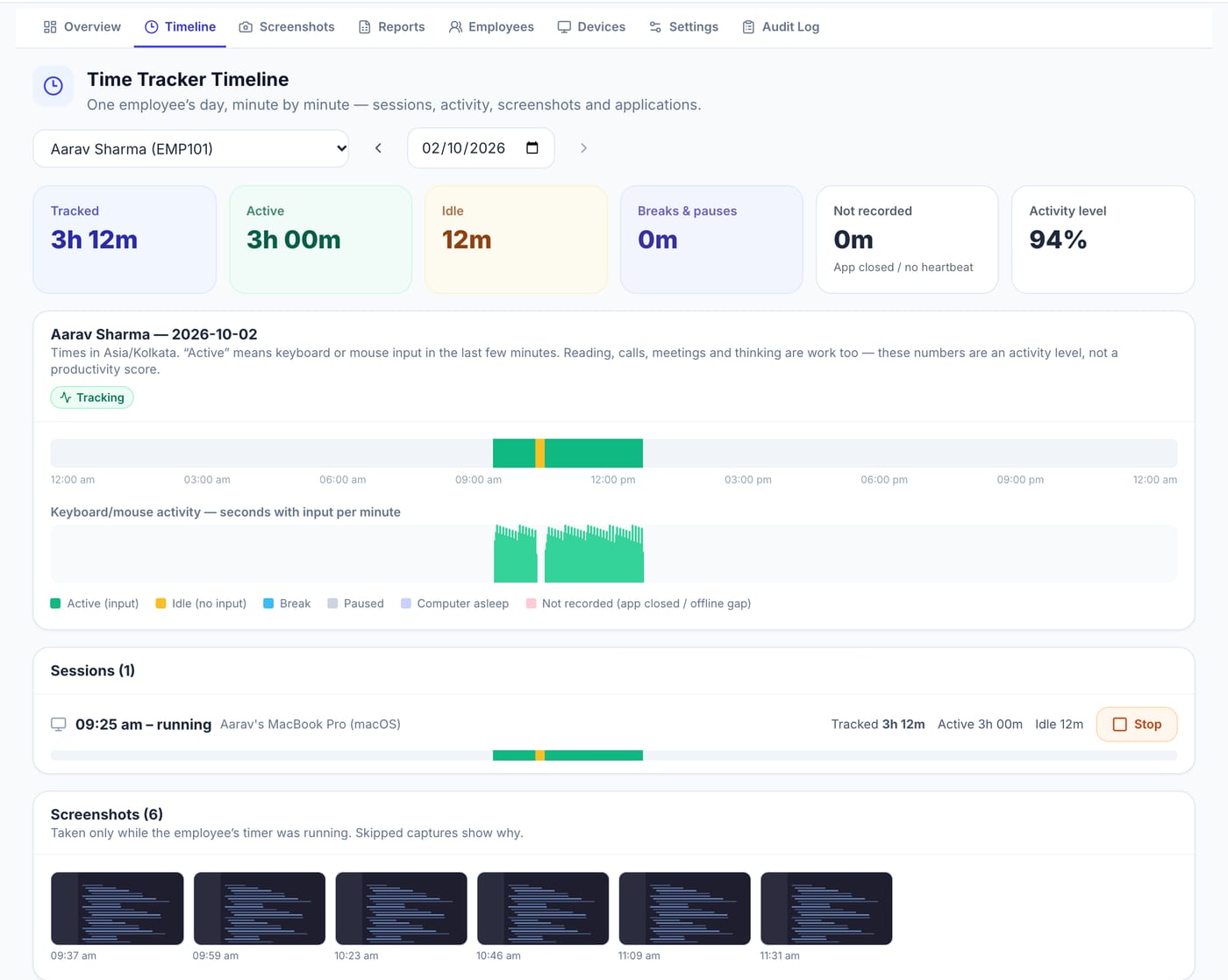
Pedinno Time Tracker records working time directly: employees start, pause, take a break and stop a timer on Windows, macOS or Android. While the timer runs it records sleep and wake of the computer and whether there was keyboard or mouse input, so managers see a minute-by-minute timeline and reports of tracked, active, idle and break time without digging through system logs. Employees can see what is recorded in the Privacy tab.
Frequently asked questions
Which event ID shows shutdown time in Windows?
Event 6006 marks a clean shutdown, 6008 an unexpected one, and 1074 records who or what started a shutdown or restart.
How do I see sleep and wake times on a Mac?
In Terminal, run pmset -g log | grep -E "Entering Sleep|Wake from".
Why is my Windows last boot time several days old?
Fast Startup keeps part of Windows in hibernation when you shut down, so the boot time only changes on a full restart.
See Time Tracker in action
Transparent time tracking for Windows, macOS and Android — timers, activity levels, timelines, optional screenshots and daily, weekly and monthly reports.
Ask to see how a Pedinno timeline records a laptop going to sleep and waking during a working day.
Explore Employee Time Tracker