It happens in every team that tracks time. Someone starts work and forgets the timer until 11 a.m. Someone else goes home with the timer still running, and the report shows a 14-hour day. Neither is misconduct. They are predictable mistakes, and a simple, fair correction policy turns them into a two-minute fix instead of a payroll dispute.
Expect mistakes and plan for them
Treat forgotten timers as normal. A policy that assumes perfect behaviour will either be ignored or lead to punitive reactions. A policy that expects occasional mistakes, and makes them easy to report, keeps the record accurate and the team relaxed about tracking.
What the correction policy should say
Keep the route short: one message to one person, approved within a day.
- Employees report a mistake by the next working day, with the correct start or end time.
- The reporting manager approves or queries the correction.
- Corrections are recorded with who requested, who approved and when.
- All corrections for the month are closed before the payroll cutoff.
- Frequent corrections trigger a friendly check-in, not a penalty.
Make forgetting less likely
Reduce the number of corrections in the first place. Make starting the timer part of the start-of-day routine, such as opening email. Use a break rather than leaving the timer running at lunch. At the end of the day, stop the timer before shutting the laptop. A short reminder in the first two weeks of rollout usually establishes the habit.
How a tracker can help you spot forgotten timers
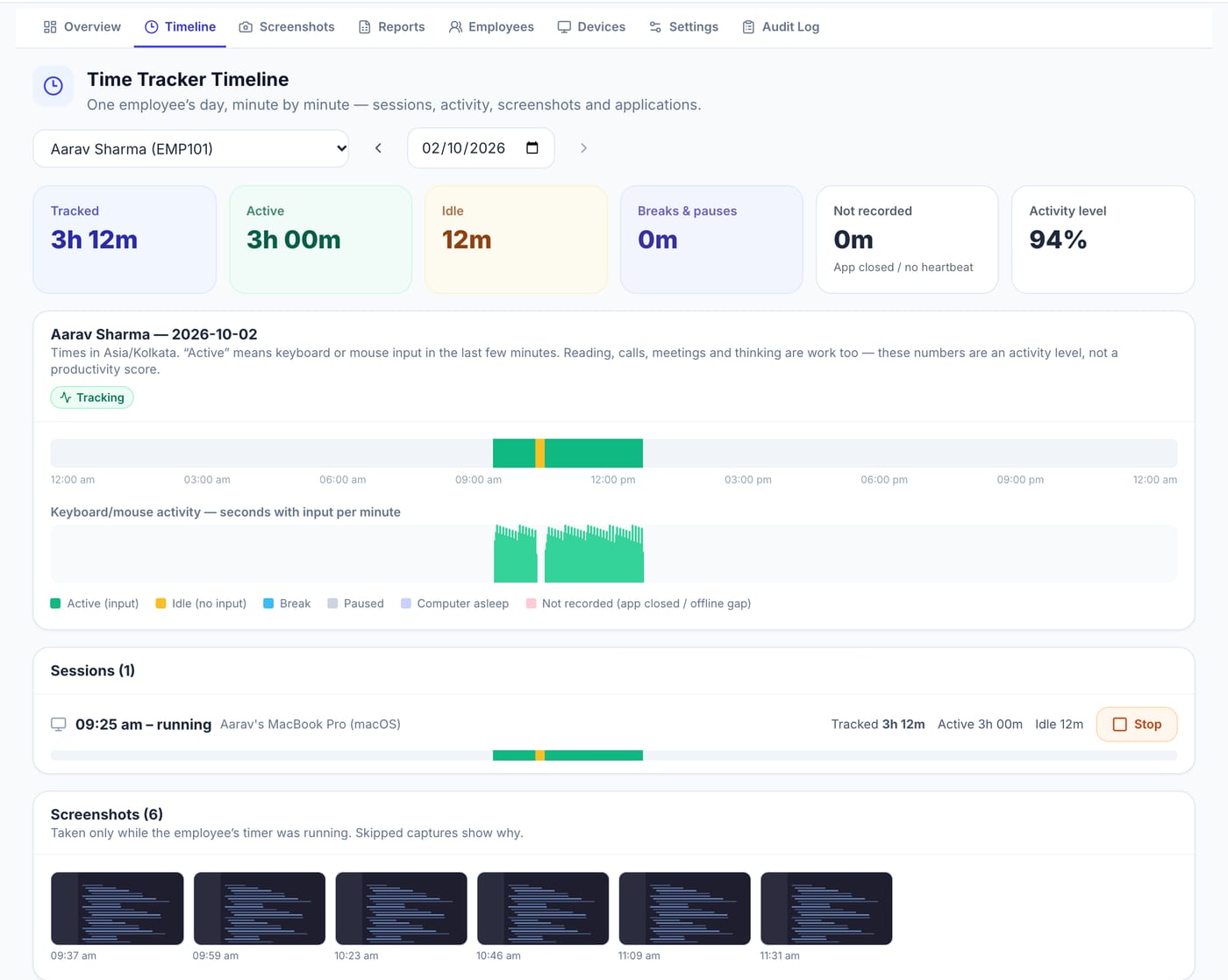
A well-designed tracker makes a forgotten timer obvious without anyone being blamed. In Pedinno Time Tracker, an employee becomes idle after a period without keyboard or mouse input (five minutes in the configuration shown in its Privacy tab), and the computer's sleep and wake are recorded. A timer left running overnight therefore appears on the timeline as a long idle stretch or a sleep period, not as hours of active work, and reports show tracked, active and idle time separately.
Connect corrections to payroll
Corrections matter because they change payable hours. Close all corrections before the payroll cutoff, and make sure the approved figures are the ones payroll uses. Pedinno Payroll uses attendance, leave and overtime as payroll inputs, so finalising the time record before the payroll day avoids replacement payslips later.
Look for patterns, kindly
If one person needs corrections several times a week, ask why. The timer may be awkward for their workflow, for example if they spend mornings in meetings away from their desk. Adjust the process for that role rather than treating it as a discipline issue.
Frequently asked questions
What should I do if I forgot to stop my timer?
Tell your manager or HR by the next working day with the correct end time, following your organisation's correction process.
Does a forgotten timer count as work time?
It should not count as active work. In Pedinno, idle periods and computer sleep are shown separately, which makes forgotten timers easy to identify and correct.
How quickly should corrections be approved?
Within a working day where possible, and always before the payroll cutoff.
See Time Tracker in action
Transparent time tracking for Windows, macOS and Android — timers, activity levels, timelines, optional screenshots and daily, weekly and monthly reports.
Ask to see how a forgotten timer appears on a Pedinno timeline and how your correction process would fit around it.
Explore Employee Time Tracker