 Pedinno Time Tracker
Know where the work hours really go.
Pedinno Time Tracker is a simple desktop timer for your team. Employees press Start, and Pedinno turns their day into accurate hours, activity levels and ready-made daily, weekly and monthly reports — with nothing hidden from the employee.
Also available for Windows and macOS (Apple Silicon & Intel).
Accurate hours without micromanagement
Built into Pedinno, so employees, branches, attendance and reports all live in one place — no second system to maintain.
Accurate work hours
Every session is recorded with start, pause, break, resume and stop times. Totals are recalculated on the server, so numbers can't be edited on the computer.
Activity level, not spying
Shows whether there was keyboard or mouse input each minute — counts only. Idle time is marked automatically after a few minutes without input.
Ready-made reports
Daily, weekly and monthly reports per employee: tracked, active, idle, breaks and day-by-day hours. Export to CSV for payroll or billing in one click.
Optional screenshots
Turn on screenshots every 1, 5 or 10 minutes, with optional blur. Never taken while paused or idle, and skipped when a password manager is open.
Works offline
No internet? The app keeps recording and sends everything when the connection is back. Nothing is lost if Wi-Fi drops or the laptop sleeps.
Live team view
See who is tracking, idle, on a break or not responding right now, with a minute-by-minute timeline for each person.
For owners & managers
- Real hours for payroll, client billing and project costing
- Spot overload or idle time early, without asking
- Choose exactly who is tracked and what is recorded
- Admin actions are kept in an audit log
For employees
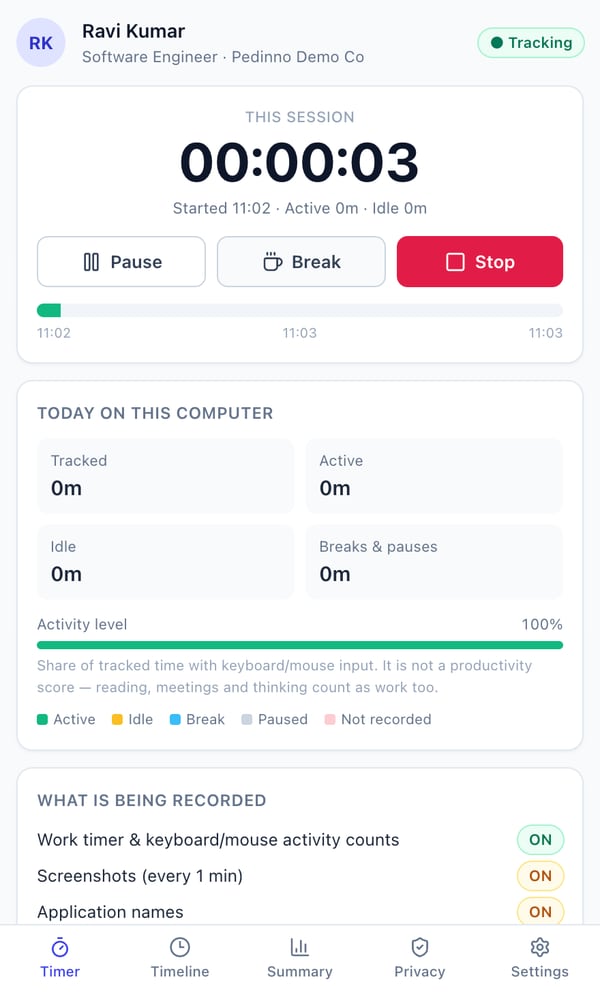
- Nothing is recorded unless you press Start
- Pause or take a break any time with one click
- See your own hours, timeline and weekly summary
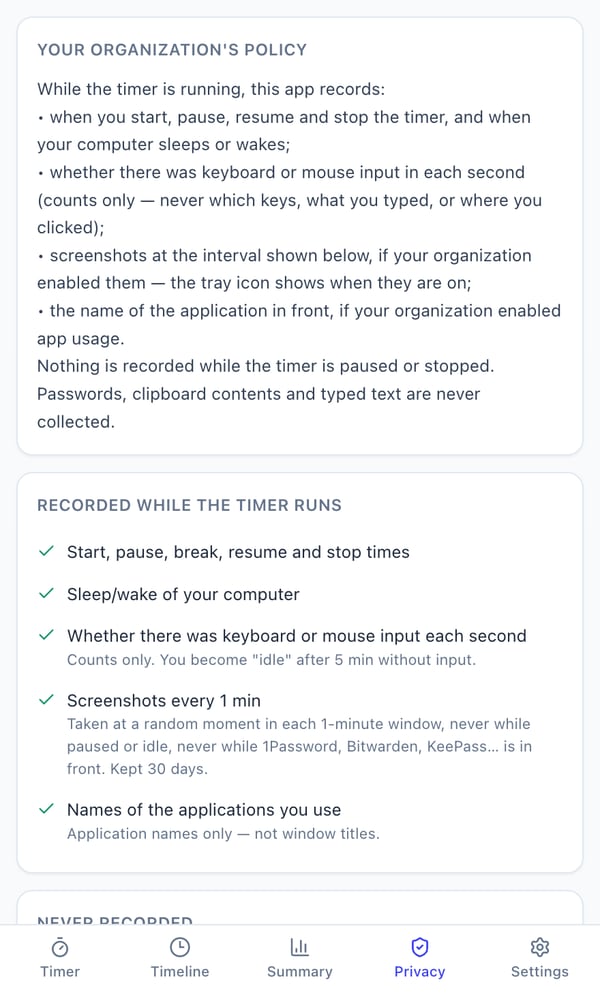
- A Privacy tab shows exactly what your organization records
See the whole team's day at a glance
These are real screens from the Pedinno admin panel (demo data). Click any image to open it full size.
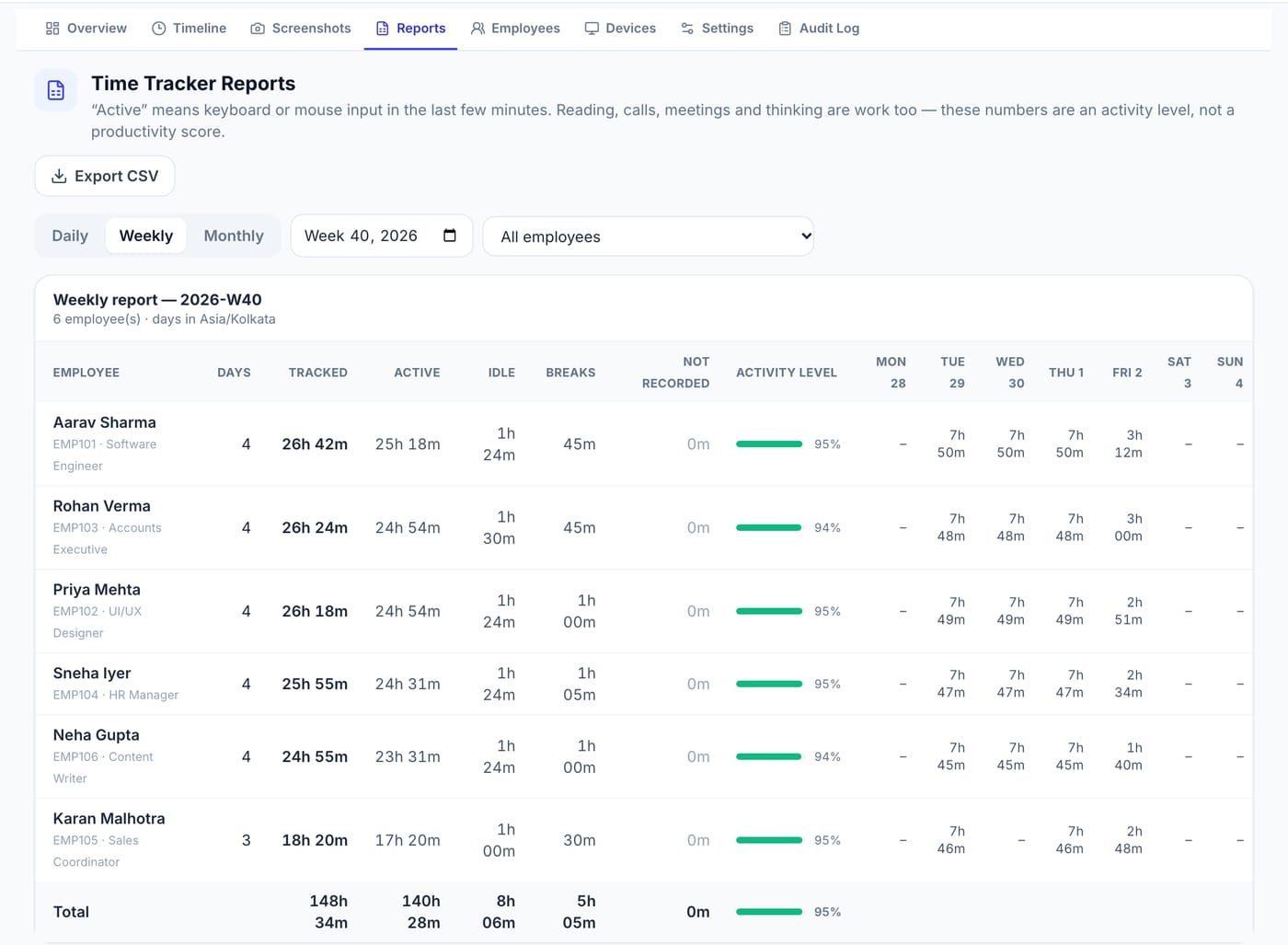
Weekly report
Every employee's week in one table: days worked, tracked, active, idle and break time, activity level and hours for each day.
- Switch between daily, weekly and monthly
- Filter to one employee
- Export CSV for payroll
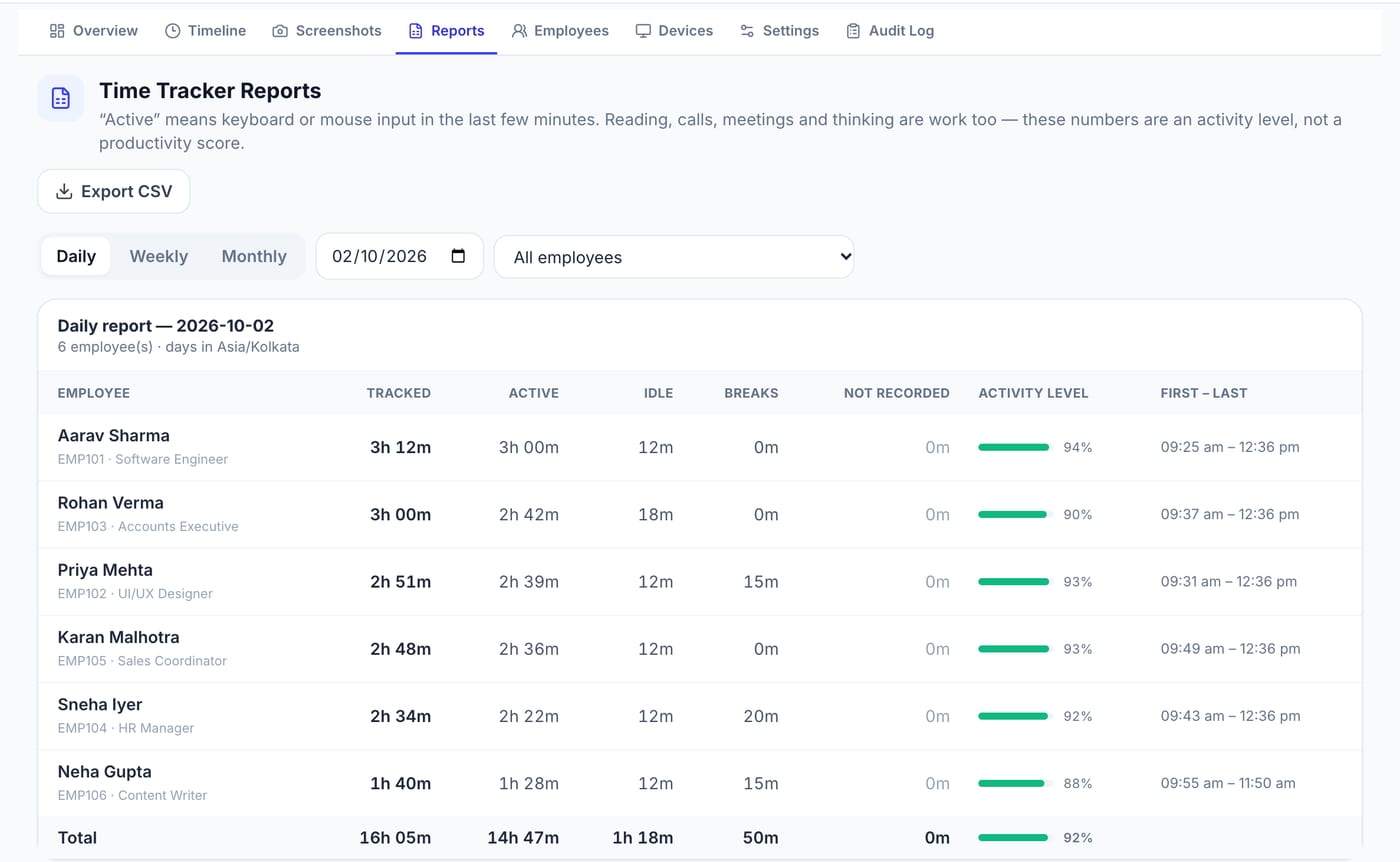
Daily report
Tracked hours, active and idle time, breaks, time not recorded and each person's first start and last stop for the day.
- Times in your organization's timezone
- "Not recorded" shows offline gaps honestly
Live overview
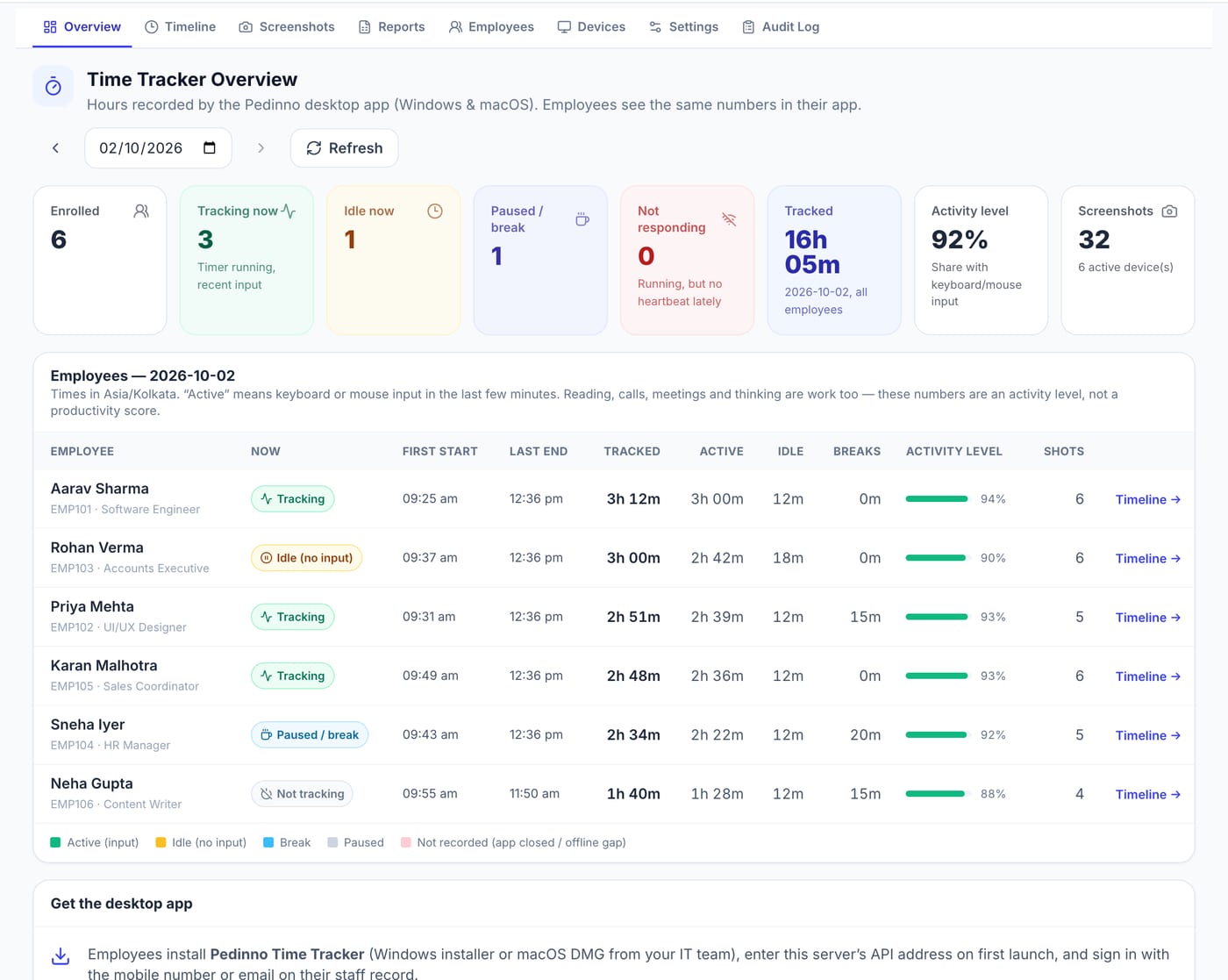
Who is tracking, idle or on a break right now, today's total hours, the team's activity level and screenshot count.
- Status refreshes with a click
- Jump to any person's timeline
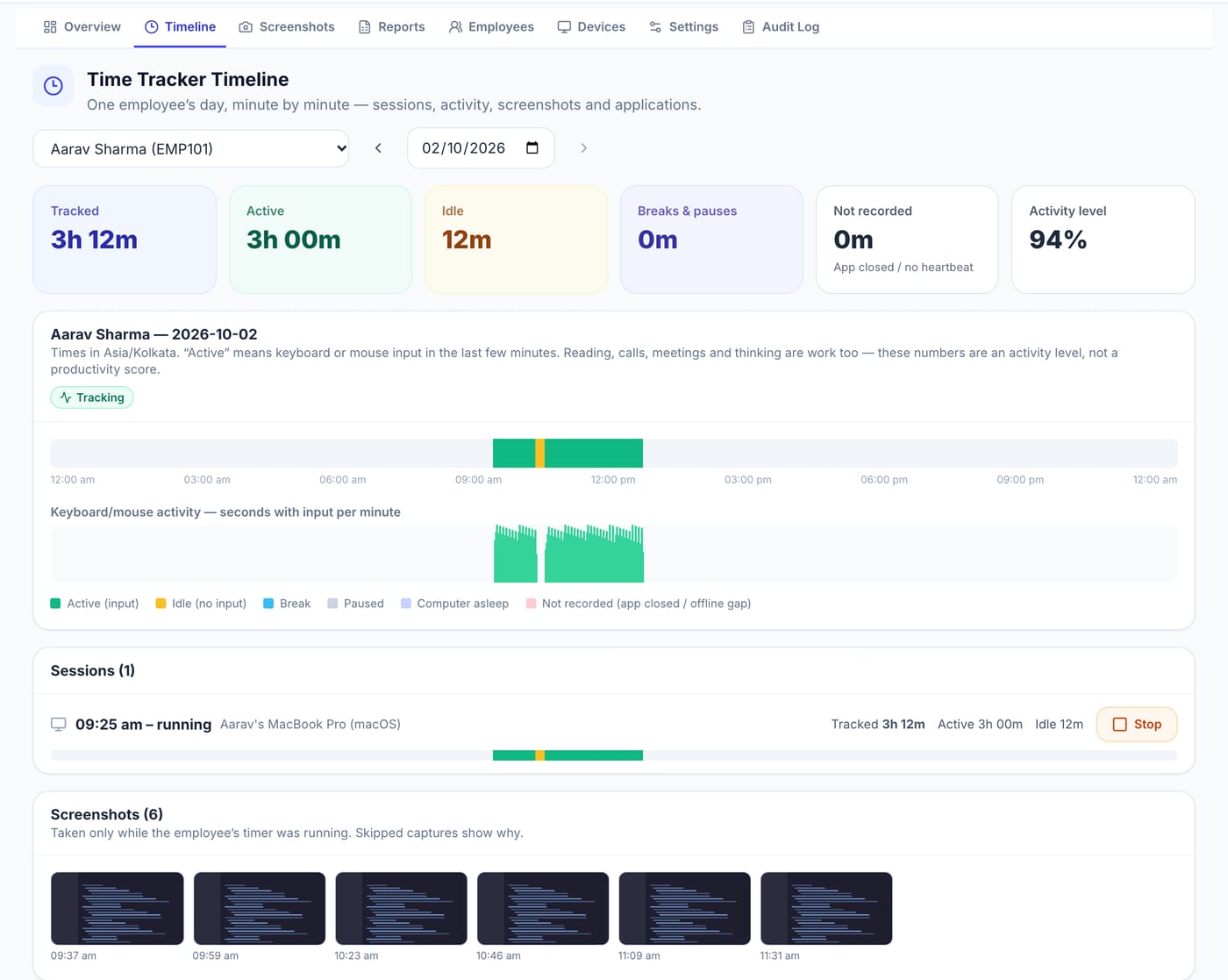
Employee timeline
One person's day, minute by minute: active, idle, break and paused time, keyboard/mouse activity, sessions per device and screenshots.
- Every computer the employee uses
- Admins can stop a forgotten timer
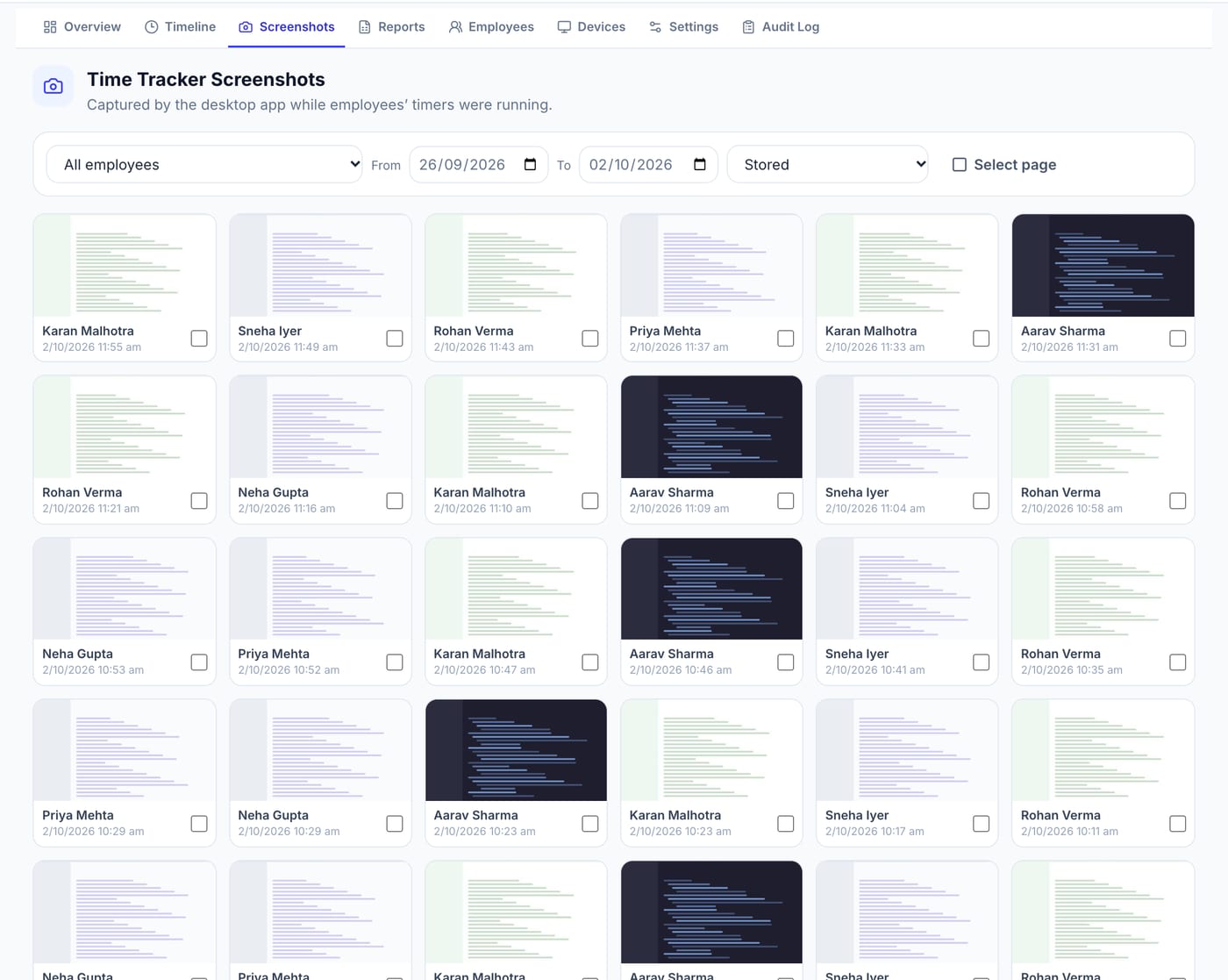
Screenshots
If you switch them on, screenshots are grouped by employee and time, and stored privately — images open only through short-lived signed links.
- Optional, with optional blur
- Deleted automatically after the retention period
- Deletions need a reason and are audited
Up and running in 10 minutes
The admin turns it on once in Pedinno; each employee installs the app and signs in. Here is the recommended process.
Admin setup — once
In the Pedinno web portal.
- Open Time Tracker → SettingsSwitch the tracker on for your branch.
- Choose what to recordIdle limit, screenshots (off, or every 1 / 5 / 10 minutes, with optional blur), application names, and how long data is kept.
- Enroll employeesPick the staff who should track time, or enroll everyone. Each person needs a mobile number or email on their staff record.
- Share this pageSend employees the link to this page so they can download the right version.
Employee — each computer
Takes about two minutes.
- Download & installWindows: run the setup file. Mac: open the DMG and drag the app into Applications.
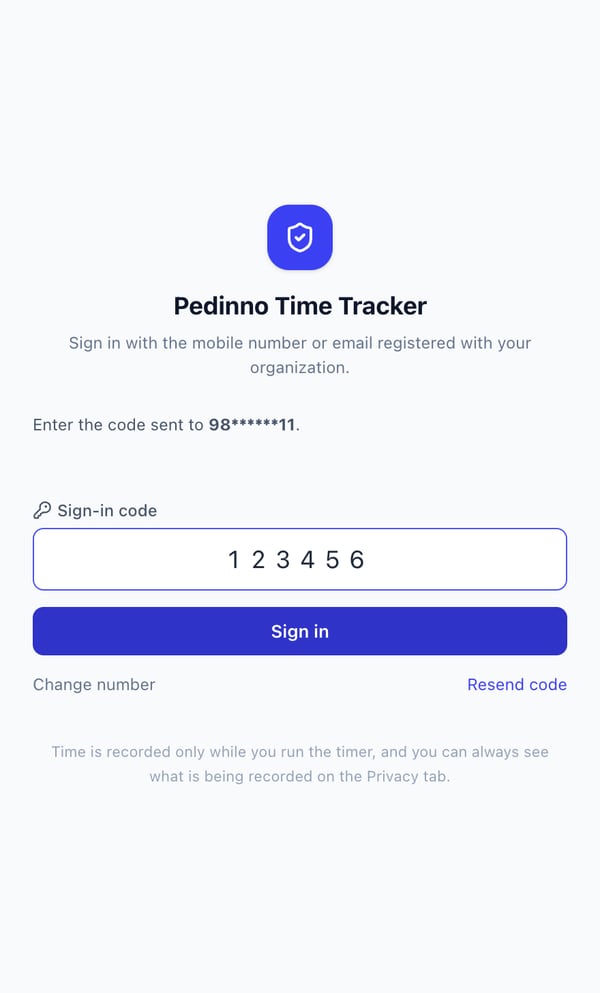
- Sign inEnter your mobile number or email, then the 6-digit code you receive.
- Allow permissions (Mac only)If your organization uses screenshots, allow
Screen Recordingwhen macOS asks. - Press Start when you begin workUse Pause or Break when you step away, and Stop at the end of the day. The app lives in the menu bar / system tray.
Windows shows "Windows protected your PC"?
- Click More info.
- Click Run anyway.
This SmartScreen notice appears for new apps until they build a download reputation. The installer is the official Pedinno build.
Which Mac version do I need?
- Click the Apple menu → About This Mac.
- Chip: Apple M1, M2, M3, M4… → download Apple Silicon.
- Processor: Intel → download Intel.
Download Pedinno Time Tracker
For organizations whose Pedinno plan includes Time Tracker. Your admin must enroll you before you can sign in.
Transparent by design
Recording happens only while the timer runs, and the employee can always see what is being recorded.
Recorded while the timer runs
- Start, pause, break, resume and stop times
- When the computer sleeps or wakes
- Whether there was keyboard or mouse input — counts only
- Screenshots, only if your organization turned them on
- Names of the applications in use, only if turned on — not window titles
Never recorded
- What you type, which keys you press or where you click
- Passwords and clipboard contents
- Browsing history
- Anything at all while the timer is paused or stopped
- Screenshots while a password manager is in front
Common questions
I can't sign in — it says I'm not enrolled.
Your admin needs to switch on Time Tracker and enroll you in Pedinno → Time Tracker → Settings. Also check that your mobile number or email is on your staff record.
I didn't receive the sign-in code.
Wait a minute and tap "Resend code". Codes go to the mobile number or email on your staff record. If it still doesn't arrive, ask your admin to check your contact details.
Does it track me when I'm not working?
No. Nothing is recorded until you press Start, and nothing is recorded while you are paused, on a break or stopped.
What if my internet goes off?
Keep working. The app saves everything on your computer and sends it automatically when you are back online.
Can I use it on more than one computer?
Yes. Install it on each computer and sign in with the same account. Reports combine the hours from all your devices.
How do updates work?
The app checks for new versions on its own, downloads them in the background and installs them when you quit or press "Restart to update". You can also use Settings → Check for updates.
Is "activity level" a productivity score?
No. It is the share of tracked time with keyboard or mouse input. Reading, calls, meetings and thinking are work too, so it should be read as a signal, not a score.